Trace a picture into paths#
Turn a logo, clip art or a cartoon (PNG or JPEG) into paths you can cut.
- Import the picture with Import in the toolbar.
- Select it, then click Trace Image in the Properties panel, or Trace under Path Tools in the Draw tab.
- Under Trace, pick Dark Areas (ink on a light background) or Light Areas.
- Under Trace As, pick Outlines for shapes to pocket, V-carve or inlay, or Centerlines for one groove down each line.
- Watch the preview and the canvas, and adjust the settings below until it looks right.
- Click Trace.
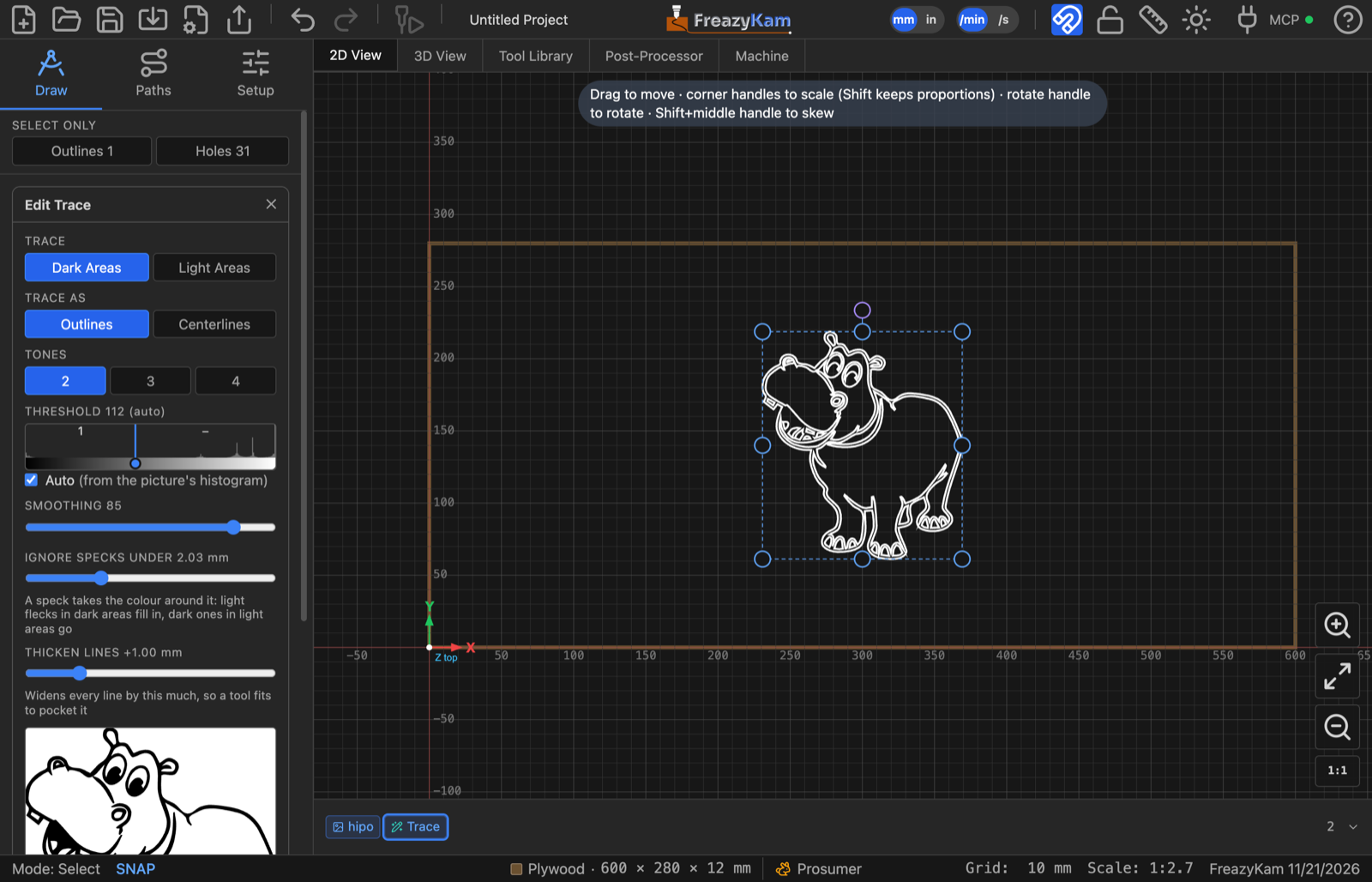
The settings#
| Setting | Does |
|---|---|
| Tones | 2 traces one shape. 3 or 4 trace that many brightness bands, each as its own layer |
| Threshold | How dark a pixel must be to count. Leave Auto on unless the result is wrong |
| Smoothing | Higher gives smoother curves. Sharp corners stay sharp |
| Ignore Specks Under | Drops shapes and holes smaller than this |
| Thicken Lines | Widens every line so a bit fits inside it. Set it to at least your bit's diameter to pocket line art. Outlines only |
Change it later#
Change a setting and click Update Trace: the old paths are replaced, so generate any toolpaths on them again. Show Image brings the picture back to compare.
A photograph traces as thousands of specks. Use Photo V-Carve for one instead.
More detail: Tracing a picture in the user guide. Related: Import a drawing or model