Carve a 3D model (STL)#
Click Import File and pick the
.stl.A rectangle appears. Move and resize it to place the carve. Resize evenly (corner handle) or the depth will be distorted.
Check the model in 3D View.
Under CAM Operations, click 3D Profile.
Set:
Field Value Model your STL (listed under STL) Roughing Tool A bigger ball nose, a bull nose or an end mill (optional) Finishing Tool Ball nose, bull nose or taper Finishing Stepover (XY) 10–20 % for a good finish Finishing Strategy Raster (or Waterline) Max Depth How deep it may go Click Generate Toolpath.
Simulate in 3D View before cutting.
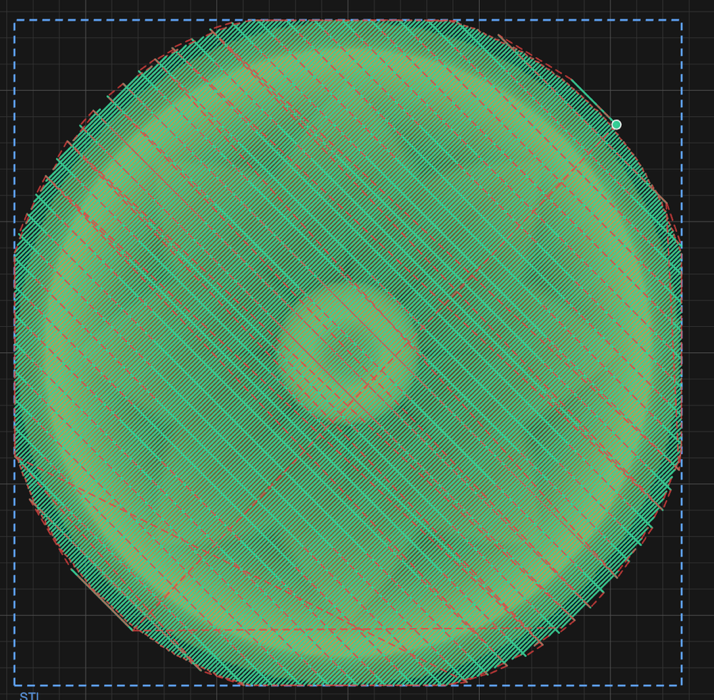
Finishing (green) at 45°; roughing (red) defaults to 90° from it, at 135°.
The top of the model sits at the top of the stock. Undercuts can't be carved.
Picture instead of STL? Follow Carve a picture in 3D.
Related: How 3D carving works · All 3D Profile settings