Keep a part a set distance from another#
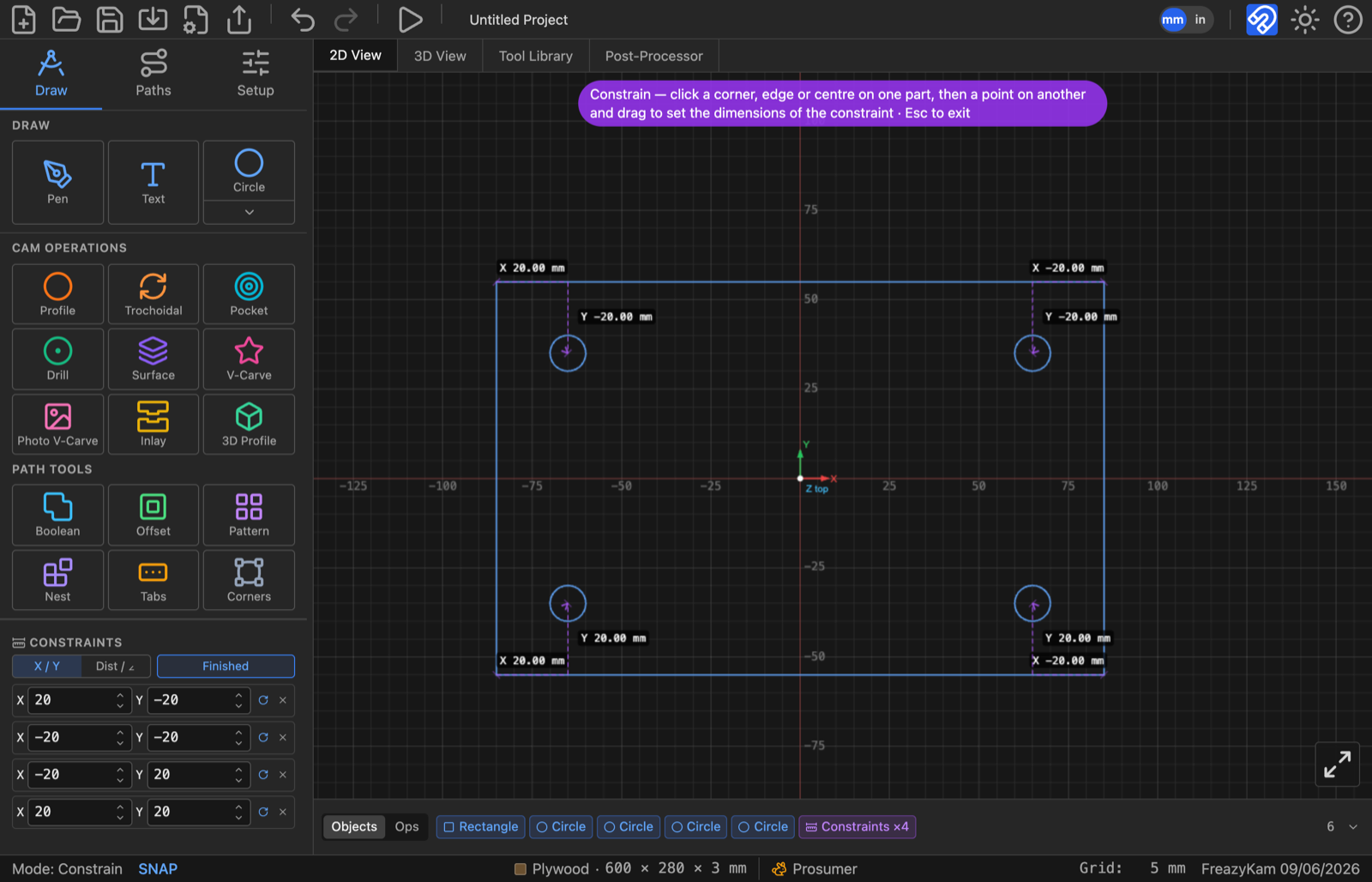
A constraint holds a part in place relative to another, even when you resize or turn the first. Example: four holes that stay 10 mm in from a plate's corners.
Add one#
- Press C.
- Hover a part. Snap points appear. The one you'd pick turns amber.
- Click a point on the first part.
- Click a point on the second part.
- Type the distance you want in the X and Y boxes.
- Press Esc twice when done.
Nothing moves when you create it. It holds the current distance until you type a new one.
Hold a part off the stock edge#
- Select one part.
- In Constraints, click Left, Right, Bottom or Top.
Edit or remove#
| To | Do |
|---|---|
| Change the distance | Type in the row |
| Free one direction | Click the X or Y label |
| Let it turn with the first part | Click ↻ |
| Delete | Click ✕ (nothing moves) |
Rows turned red?#
Two constraints are fighting. Delete one. See Over-constrained.