Combine, offset, pattern and round shapes#
These are under Path Tools in the Draw tab. They change shapes; they don't cut. Click the result's chip in the Objects strip to change the settings later.
Combine shapes (Boolean)#
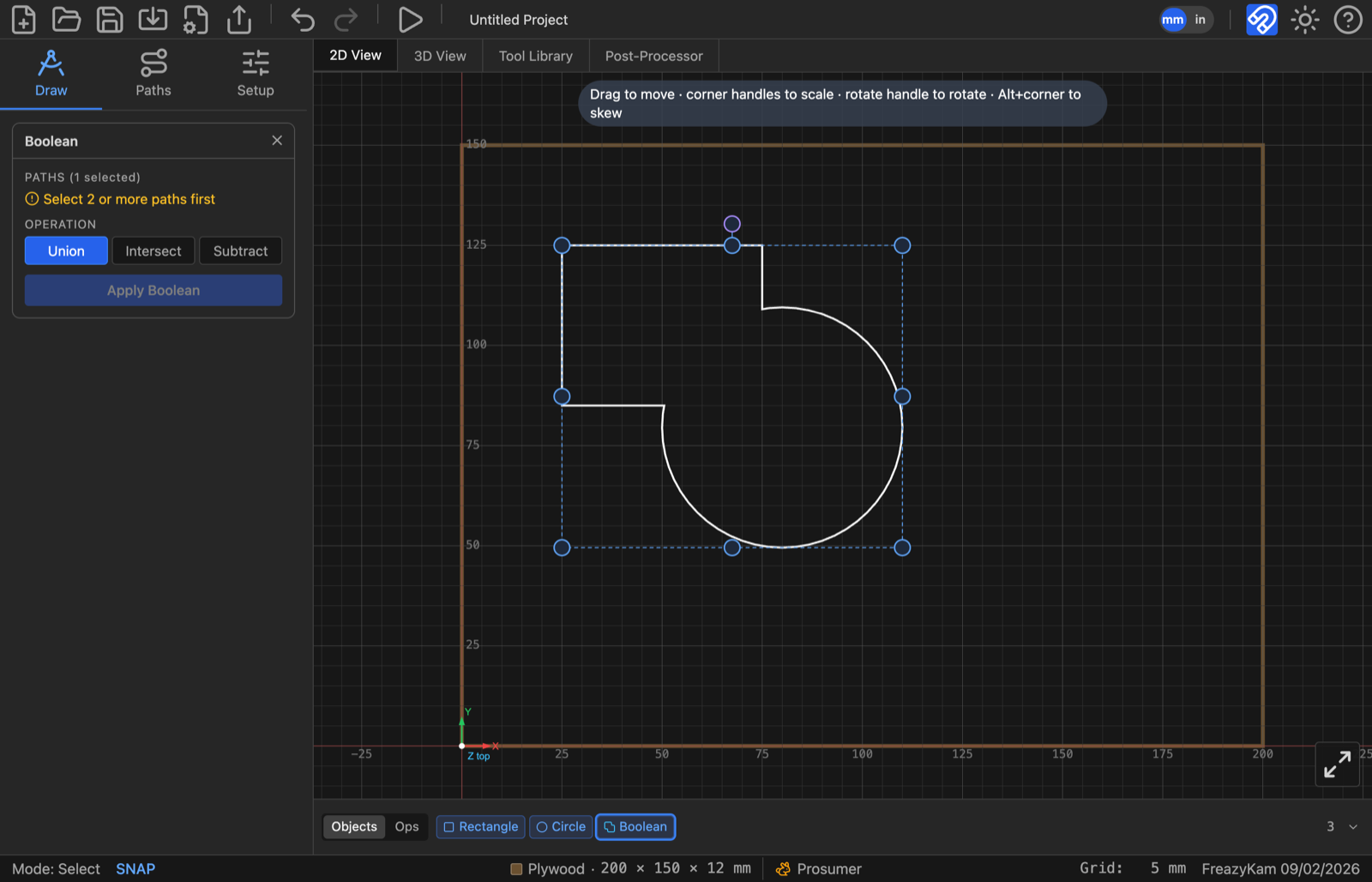
- Click the shape to keep first, then Shift-click the others.
- Click Boolean.
- Under Operation, pick union, intersect or subtract.
- Click Apply Boolean.
For Subtract, the first shape you clicked is kept. The originals are hidden, not deleted.
Grow or shrink a shape (Offset)#
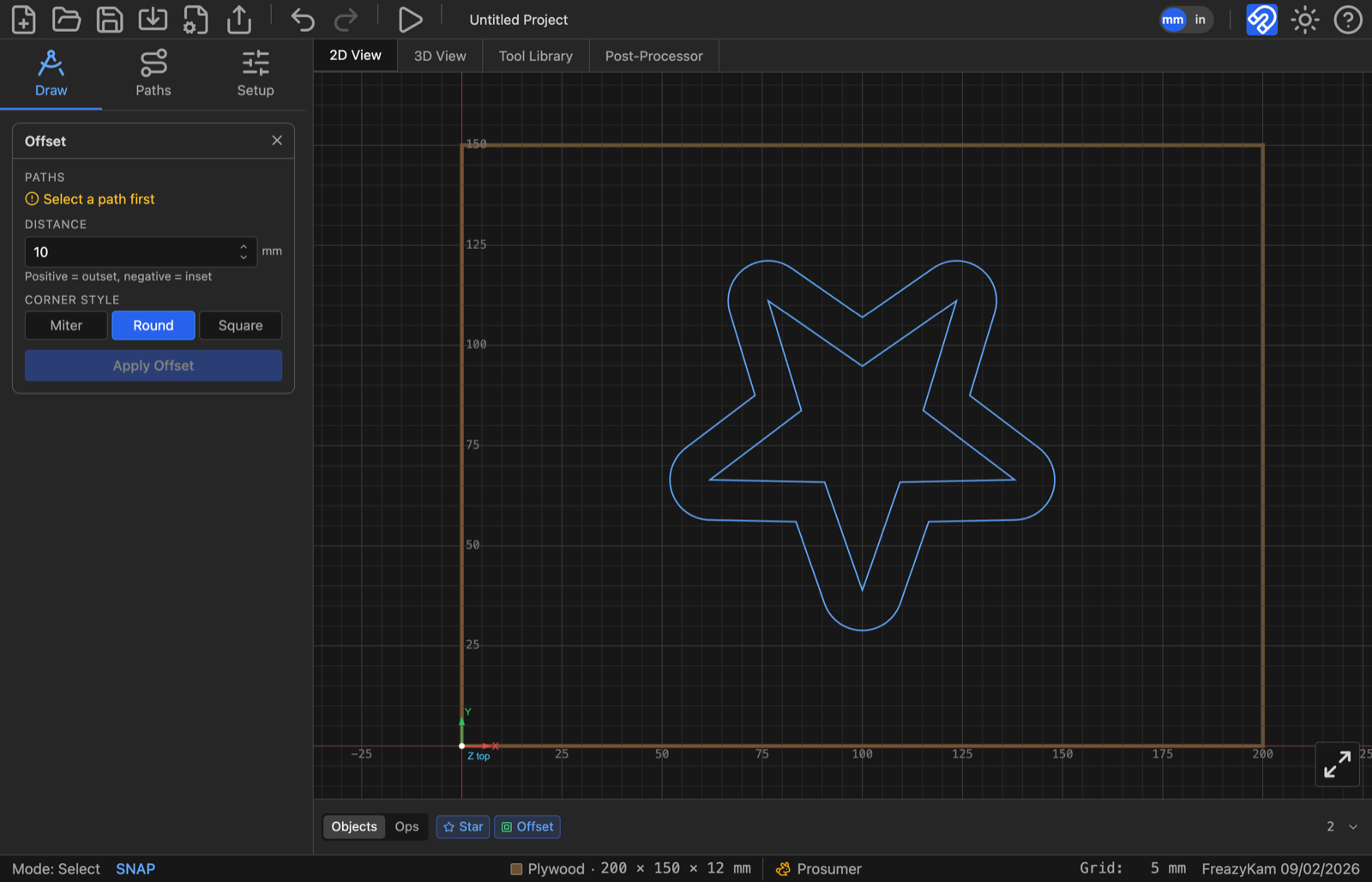
- Select one or more shapes.
- Click Offset.
- Type a Distance: positive grows, negative shrinks.
- Pick a Corner Style: miter, round or square.
- Click Apply Offset.
A rectangle, circle, star or other basic shape stays that shape with new settings. Tick Keep shape to offset any other outline by scaling it to an average gap.
Repeat a shape (Pattern)#
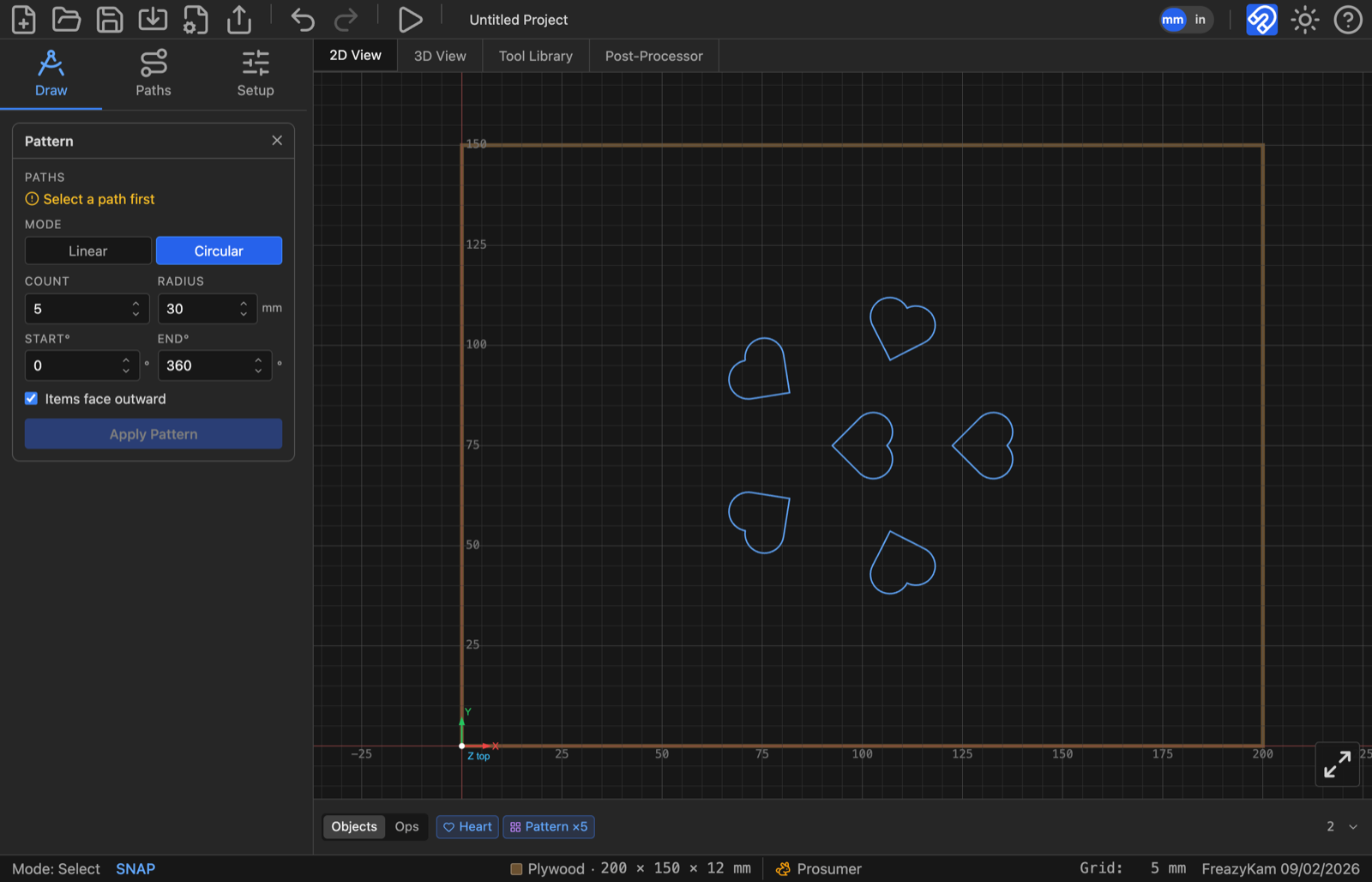
- Select one shape or group.
- Click Pattern.
- Pick a Mode:
- linear: set Rows, Cols, and the X Gap and Y Gap between copies.
- circular: set Count, Radius, Start° and End°. Tick Rotate items to turn each copy to face outward.
- Click Apply Pattern.
Round, chamfer or dogbone corners (Corners)#
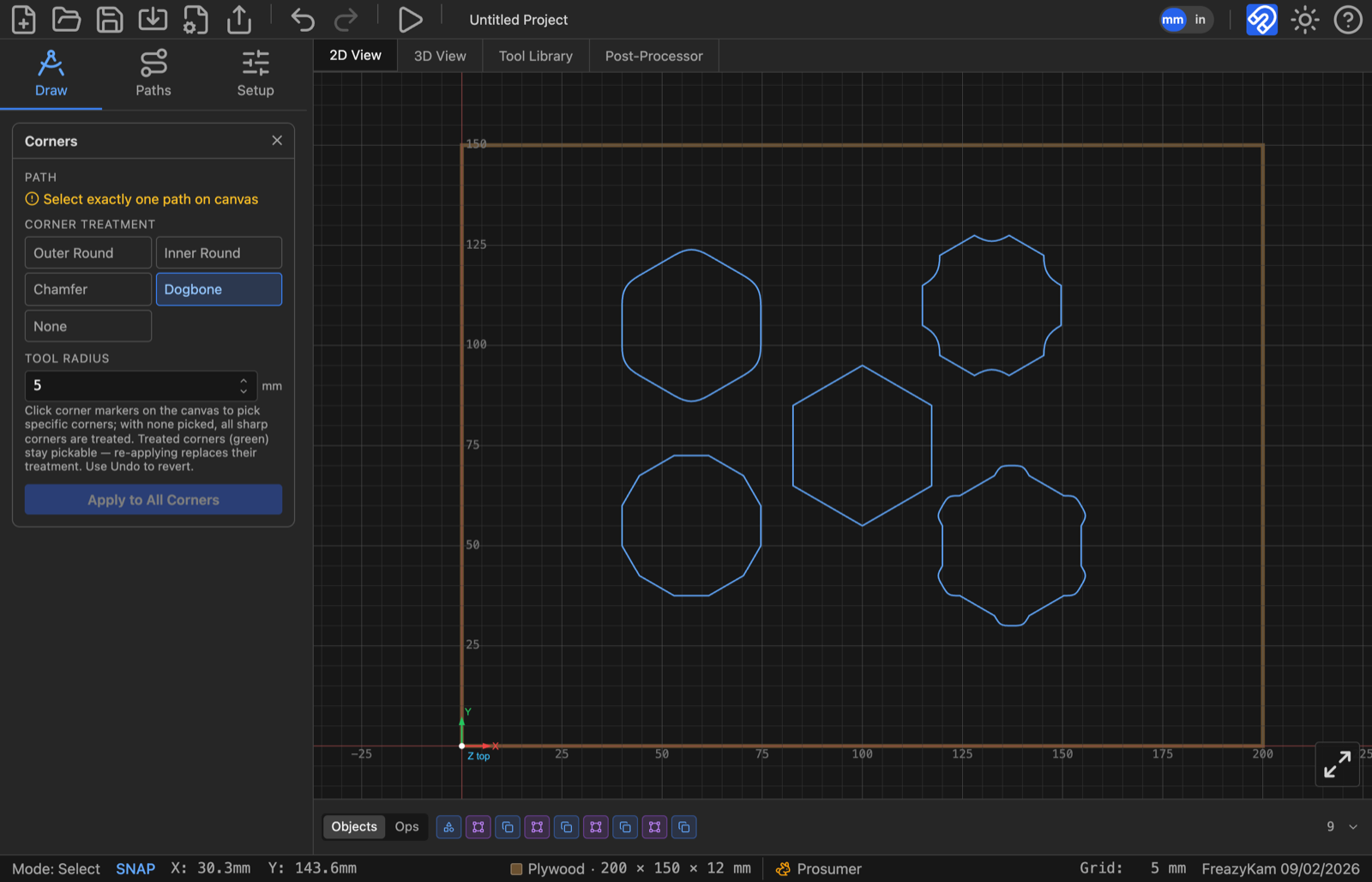
- Select one shape.
- Click Corners.
- Under Corner Treatment, pick Outer Round, Inner Round, Chamfer or Dogbone.
- Set the Radius.
- Click corner markers on the canvas to pick corners, or pick none to treat them all.
- Click Apply to All Corners (or Apply to N Selected Corners).
Dogbone lets a square part fit a pocket cut by a round bit. Its field is Tool Radius: enter your bit's radius. None removes a treatment.
Related: Add holding tabs · Nest parts