Place copies with the mouse (Duplicate)#
Stamp copies of a selection wherever you click. Duplicate is under Path Tools in the Draw tab, or press Ctrl+D.
- Select one or more shapes.
- Click Duplicate, or press Ctrl+D.
- Move the mouse: a copy follows it, snapping to corners and edges of other shapes.
- Click to place a copy. Keep clicking to place more.
- Press Esc to finish.
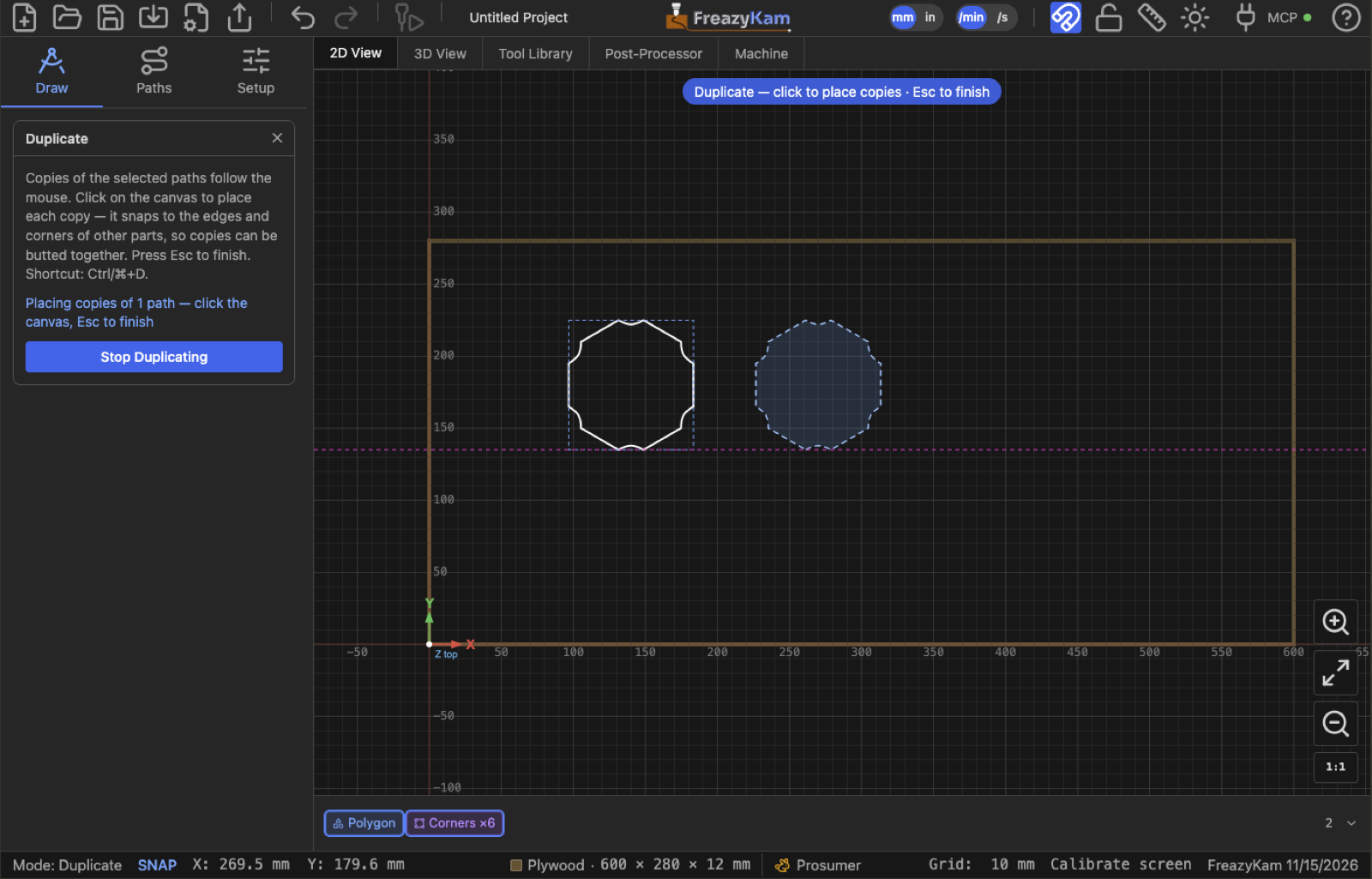
A copy stays the shape it came from, so a gear or a boolean can still be edited, and it keeps the original's name. Each click is one undo step.
Copies follow the original#
Change the original's size or settings and every copy changes to match, each staying where you placed it. Moving or rotating the original doesn't move the copies.
To make a copy independent, select it and click Unlink next to Linked to … at the top of its Properties. Changing the copy's own size or settings unlinks it too.
Related: Repeat a shape · Copy parts between projects