Make your first part#
You will make a coaster: a 100 mm disc with a 3 mm recess, held by tabs so it can't fly loose. It takes about 10 minutes.
Stuck? The finished project is
01-circles.fkam. Open it with the toolbar's Open button to compare.
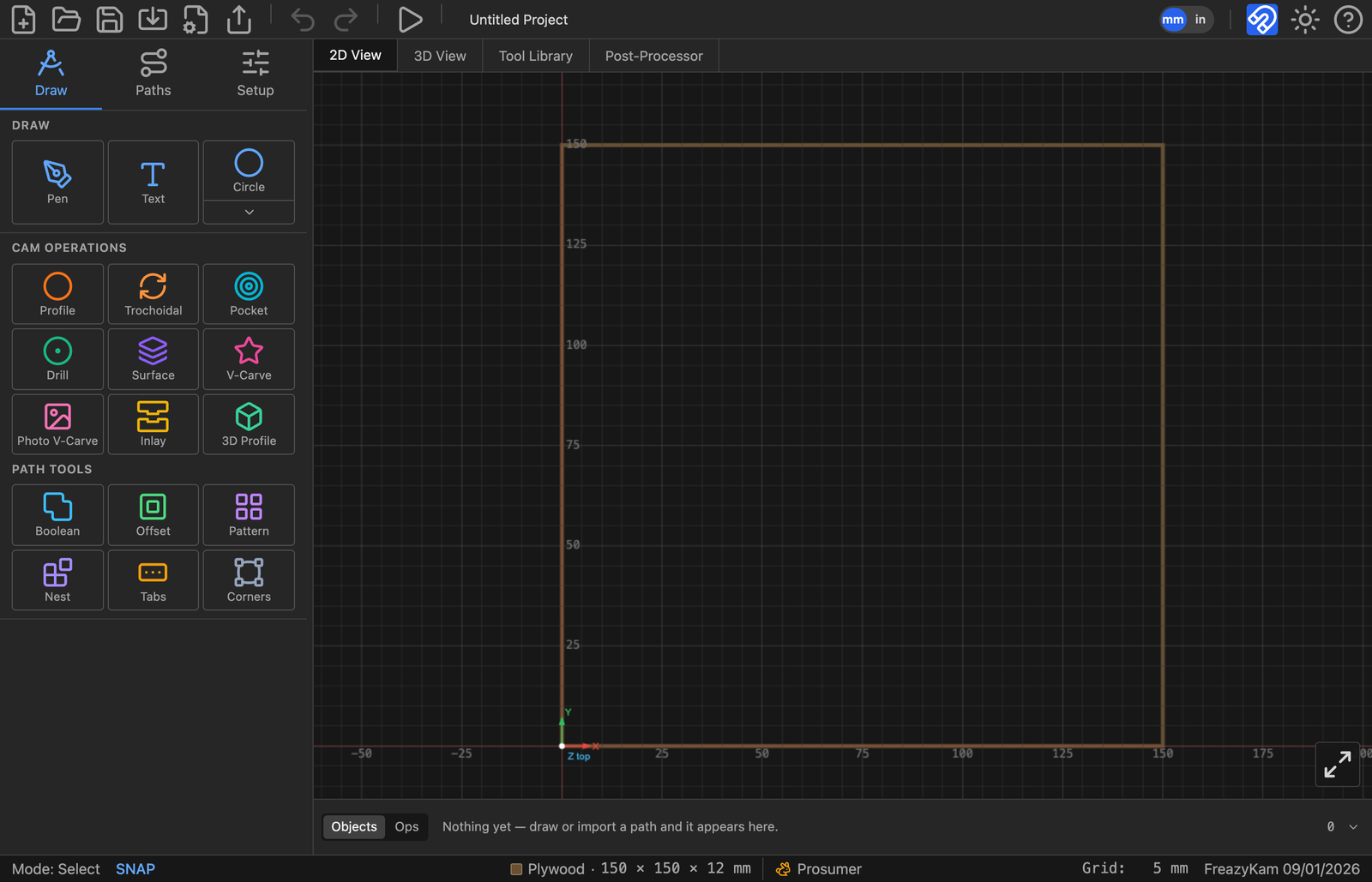
1. Set the stock#
Click the Setup tab in the left sidebar.
Type these values:
Field Value Width (X) 150Height (Y) 150Thickness (Z) 12Leave Work Origin on bottom-left and Z Origin on Top of stock.
Pick your wood under Material.
Click × to close the panel.
2. Draw two circles#
- Click the Draw tab.
- Click the shape button. If it doesn't say Circle, click the arrow under it and pick Circle.
- Set Diameter to
100. - Click once in the middle of the stock.
- Change Diameter to
80. - Click on the same spot again.
- Press Esc.
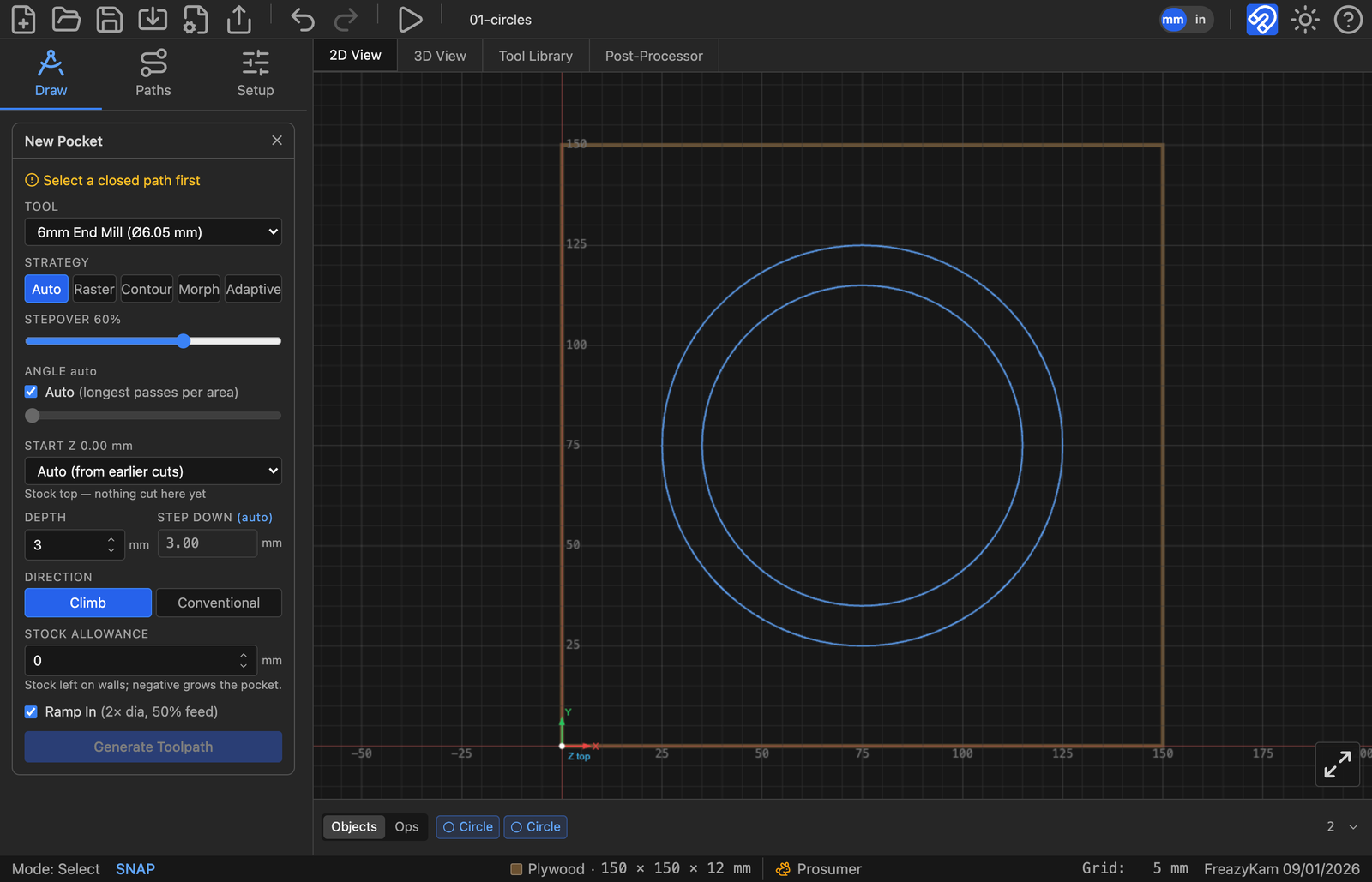
You now have two circles, one inside the other.
3. Pocket the recess#
Click the inner circle.
Under CAM Operations, click Pocket.
Set:
Field Value Tool 6 mm end mill Depth 3Leave everything else as it is.
Click Generate Toolpath.
Click × to close the form.
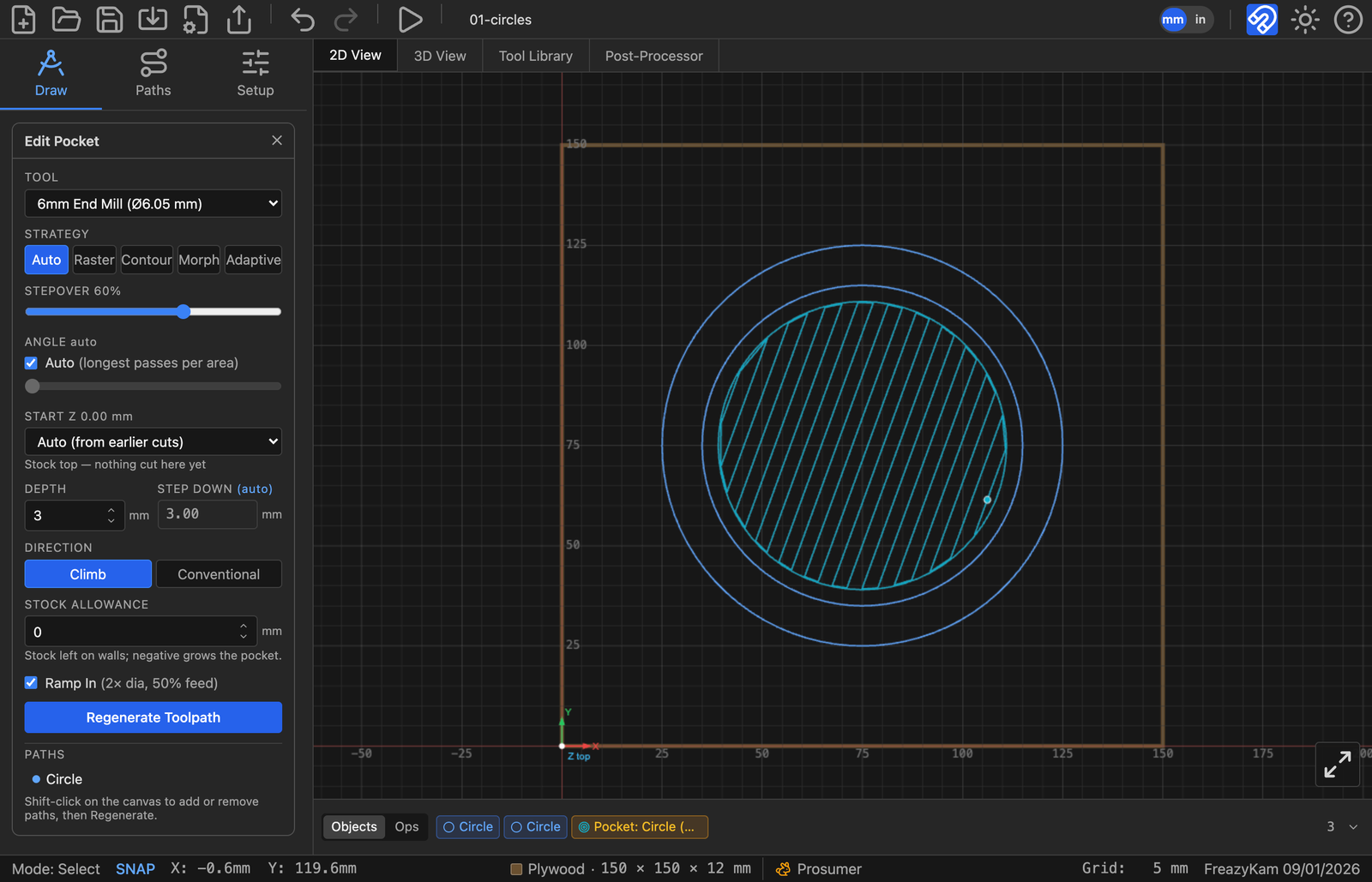
4. Add tabs#
- Click the outer circle.
- Under Path Tools, click Tabs.
- Set Count
4, Length8, Height2. - Click Apply Tabs.
- Click ×.
5. Cut it out#
Keep the outer circle selected.
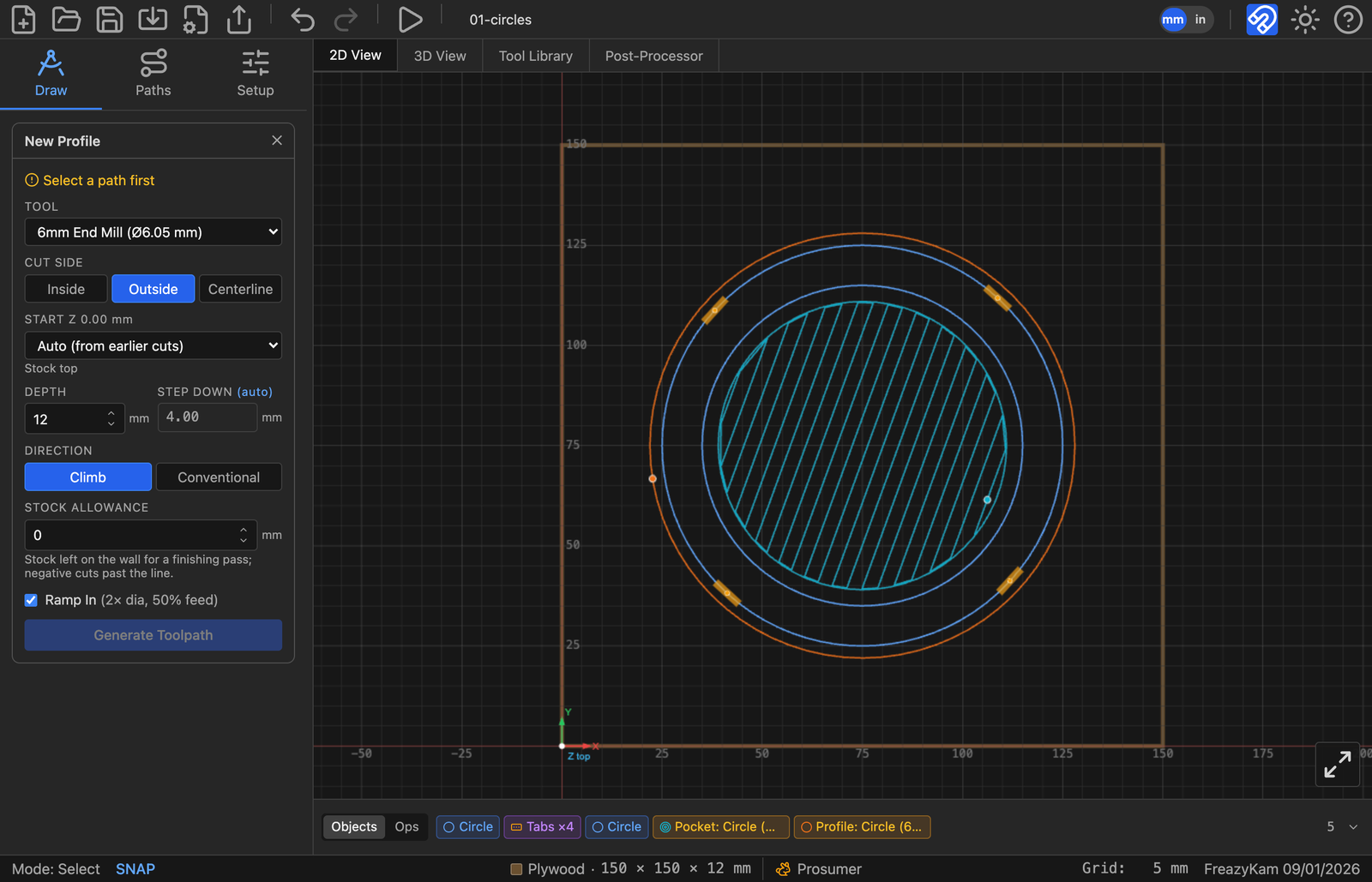
Under CAM Operations, click Profile.
Set:
Field Value Tool 6 mm end mill Cut Side outside Depth 12.5Click Generate Toolpath.
Click ×.
You'll see four gaps in the outline. Those are the tabs.
6. Check the order#
- Click the Paths tab, then Toolpaths.
- Make sure Pocket is above Profile. If not, drag it up.
7. Watch it cut#
- Click Simulate G-code in the toolbar.
- Click the 3D View tab.
- Press Play.
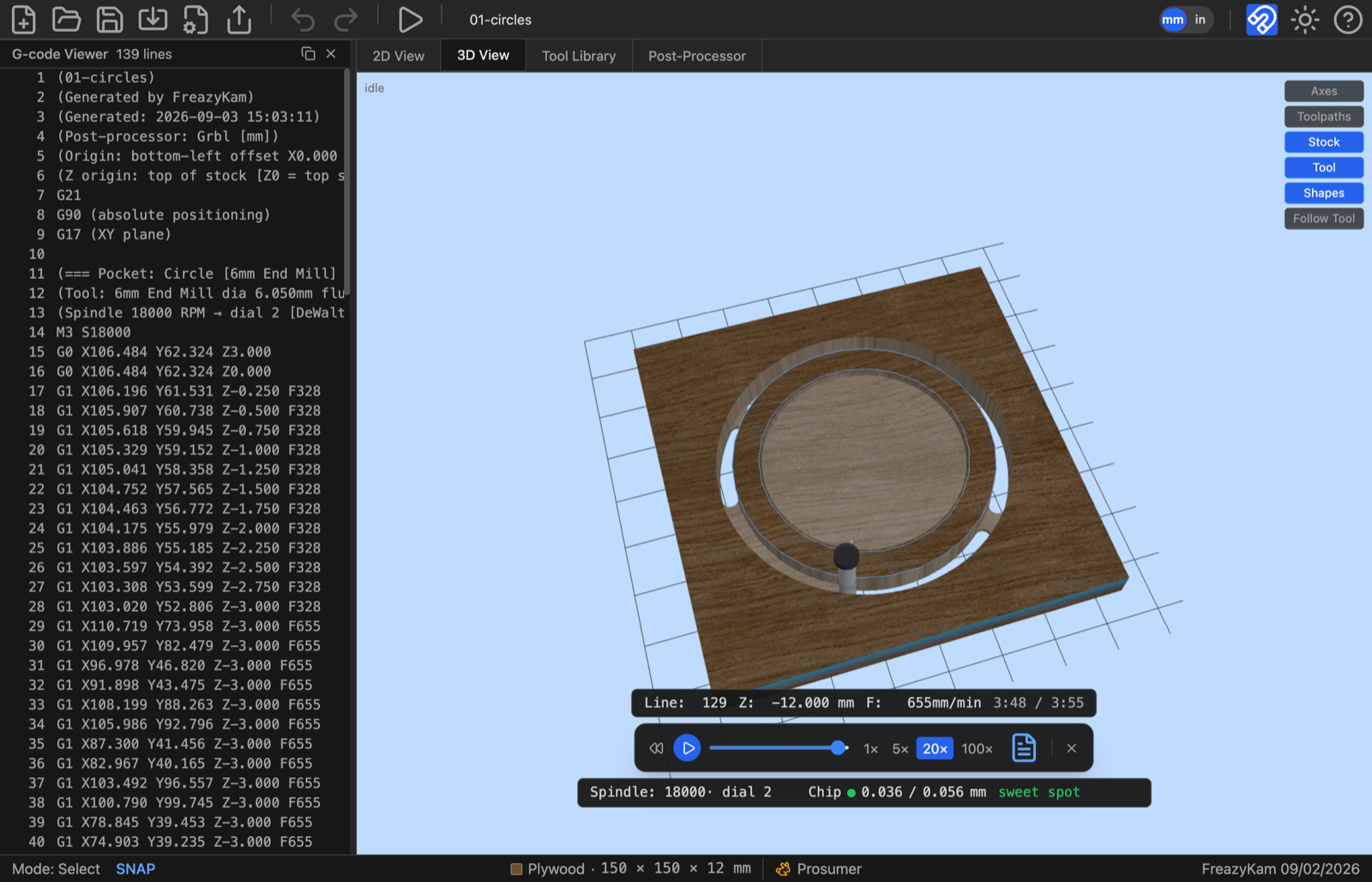
Close the player with × when you're done.
8. Export#
- Click Export G-code in the toolbar.
- Read the review. Check the origin lines match how you'll zero the machine.
- Click Export.
The .gcode file is in your downloads folder.
9. Save#
Press Ctrl+S and name the file. This .fkam file keeps everything, so you can edit it
later.
Done#
You've used the five steps every job follows:
- Set the stock
- Draw
- Select, pick an operation, generate
- Check the order and simulate
- Export
Next: Carve a picture in 3D, or browse the how-to guides.
Want to know why?